Thursday, May 5, 2011

Data Types more (date, time)


Date variables are stored as IEEE 64-bit (8-byte) floating-point numbers that represent dates ranging from 1 January 100 to 31 December 9999 and times from 0:00:00 to 23:59:59. Any recognizable literal date values can be assigned to Date variables. Date literals must be enclosed within number signs (#), for example, #January 1, 1993# or #1 Jan 93#.
Date variables display dates according to the short date format recognized by your computer. Times display according to the time format (either 12-hour or 24-hour) recognized by your computer.

When other numeric types are converted to Date, values to the left of the decimal represent date information while values to the right of the decimal represent time. Midnight is 0 and midday is 0.5. Negative whole numbers represent dates before 30 December 1899.


             Dim thedate As Date
             thedate = Date
             Res = MsgBox(Date, vbOKOnly, "Date Demo")


             Dim thedate As Date
             thedate = Time    


Res = MsgBox(Time, vbOKOnly, "Date Demo")

Dim thedate As Date
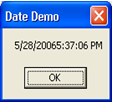
thedate = Date & Time
Res = MsgBox(thedate, vbOKOnly, "Date Demo")
Dim thedate1, thedate2 As Date
thedate1 = Day(Date)

Res = MsgBox(thedate1, vbOKOnly, "Date Demo")


Syntax
Weekday(date, [firstdayofweek])
The Weekday function syntax has these named arguments:


Part
Description
date
Required. Variant, numeric expression, string expression, or any combination, that can represent a date. If date contains Null, Null is returned.
firstdayofweek
Optional. A constant that specifies the first day of the week. If not specified, vbSunday is assumed.

Settings
The firstdayofweek argument has these settings:

Return Values
The Weekday function can return any of these values:

.
Constant
Value
Description
vbSunday
1
Sunday
vbMonday
2
Monday
vbTuesday
3
Tuesday
vbWednesday
4
Wednesday
vbThursday
5
Thursday
vbFriday
6
Friday
vbSaturday
7
Saturday

.

Savings Account


1.   Start a new project.  The idea of this project is to determine how much you save by making monthly deposits into a savings account.  For those interested, the mathematical formula used is:

F = D [ (1 + I)M - 1] / I

where

                                          F - Final amount
                                          D - Monthly deposit amount
                                          I - Monthly interest rate
                                          M - Number of months


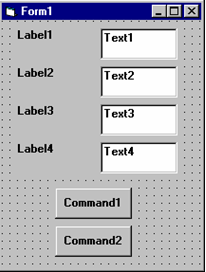
2.  Place 4 label boxes, 4 text boxes, and 2 command buttons on the form.  It should look       something like this:
      
3.   Set the properties of the form and each object.

Form1:
      BorderStyle               1-Fixed Single
      Caption                      Savings Account
      Name                         frmSavings

Label1:

                Caption                      Monthly Deposit

Label2:
                 Caption                      Yearly Interest

Label3:
                 Caption                      Number of Months

Label4:
                 Caption                      Final Balance


Text1:
                 Text                             [Blank]
                 Name                         txtDeposit


Text2:
                Text                             [Blank]
                Name                         txtInterest

Text3:
               Text                             [Blank]
               Name                         txtMonths

Text4:
               Text                             [Blank]
               Name                         txtFinal


Command1:
                         Caption                      &Calculate
                          Name                         cmdCalculate


Command2:
                         Caption                      E&xit
                         Name                         cmdExit

Now, your form should look like this:


4.   Declare four variables in the general declarations area of your form.  This makes them available to all the form procedures:
     
      Option Explicit
      Dim Deposit As Single
      Dim Interest As Single
      Dim Months As Single
      Dim Final As Single
     
      The Option Explicit statement forces us to declare all variables.
     
5.   Attach code to the cmdCalculate command button Click event.
     
      Private Sub cmdCalculate_Click ()
      Dim IntRate As Single
      ‘Read values from text boxes
      Deposit = Val(txtDeposit.Text)
      Interest = Val(txtInterest.Text)
      IntRate = Interest / 12.00
      Months = Val(txtMonths.Text)
      ‘Compute final value and put in text box
      Final = Deposit * ((1 + IntRate) ^ Months - 1) / IntRate
      txtFinal.Text = Format(Final, "#####0.00")
      End Sub

This code reads the three input values (monthly deposit, interest rate, number of months) from the text boxes, computes the final balance using the provided formula, and puts that result in a text box.

6.   Attach code to the cmdExit command button Click event.
     
      Private Sub cmdExit_Click ()
      End
      End Sub
     
7.   Play with the program.  Make sure it works properly.  Save the project.

.

Visual Basic Operators


1.        Arithmetic. Operators
2.        String -Concatentate Operators
3.        Comparison Operators
4.        Logical Operators
     
Arithmetic. Operators

Operator       Operation
        ^              Exponentiation
       * /             Multiplication and division
         \               Integer division (truncates)
     Mod           Modulus
       + -             Addition and subutraction
     
Parentheses around expressions can change precedence.

String -Concatentate Operators

   To concatentate two strings, use the & symbol or the + symbol:
     
lblTime.Caption = "The current time is" & Format(Now, “hh:mm”)
txtSample.Text = "Hook this “ + “to this”

·         There are six comparison operators in Visual Basic:

Operator       Comparison
        >              Greater than
        <              Less than
       >=             Greater than or equal to
       <=             Less than or equal to
        =              Equal to
       <>             Not equal to

   The result of a comparison operation is a Boolean value (True or False).


   Three logical operators
     
Operator       Operation
      Not            Logical not
     And           Logical and
       Or             Logical or
     
   The Not operator simply negates an operand.
     
   The And operator returns a True if both operands are True. Else, it returns a False.

   The Or operator returns a True if either of its operands is True, else it returns a False.
     
·         Logical operators follow arithmetic operators in precedence.