Search This Blog

Showing posts with label Visual Basic. Show all posts

Saturday, May 28, 2011

Calendar/Time Display


Design a window that displays the current month, day, and year.  Also, display the current time, updating it every second (look into the Timer control).  Make the window look something like a calendar page.  Play with object properties to make it pretty.

My Solution:

Form:


Properties:

Form frmCalendar:
            Caption = My Calendar
            BorderStyle = 1 - Fixed Single

Timer timDisplay:
            Interval = 1000

Label lblDay:
            Caption = Sunday
            FontName = Times New Roman
            FontBold = True
            FontSize = 24

Label lblTime:
            Caption = 00:00:00 PM
            FontName = Times New Roman
            FontBold = True
            FontSize = 24

Label lblYear:
            Alignment = 2 - Center
            Caption = 1998
            FontName = Times New Roman
            FontBold = True
            FontSize = 24

Label lblNumber:
            Alignment = 2 - Center
            Caption = 31
            FontName = Arial
            FontBold = True
            FontSize = 72

Label lblMonth:
            Alignment = 2 - Center
            Caption = March
            FontName = Times New Roman
            FontBold = True
            FontSize = 24


Code:

General Declarations:

Option Explicit


timDisplay Timer Event:

Private Sub timDisplay_Timer()
Dim Today As Variant
Today = Now
lblDay.Caption = Format(Today, "dddd")
lblMonth.Caption = Format(Today, "mmmm")
lblYear.Caption = Format(Today, "yyyy")
lblnumber.Caption = Format(Today, "d")
lblTime.Caption = Format(Today, "h:mm:ss ampm")
End Sub


.

Wednesday, May 25, 2011

Visual Basic Functions


Visual Basic offers a rich assortment of built-in functions.  The on-line help utility will give you information on any or all of these functions and their use.  Some examples are:

            Function       Value Returned

            Abs                 Absolute value of a number

            Asc                 ASCII or ANSI code of a character

            Chr                 Character corresponding to a given ASCII or ANSI code

            Cos                 Cosine of an angle

            Date                Current date as a text string

            Format            Date or number converted to a text string

            Left                 Selected left side of a text string

            Len                 Number of characters in a text string

            Mid                  Selected portion of a text string

            Now                Current time and date

            Right              Selected right end of a text string

            Rnd                Random number

            Sin                  Sine of an angle

            Sqr                  Square root of a number

            Str                   Number converted to a text string

            Time               Current time as a text string

            Timer              Number of seconds elapsed since midnight

            Val                  Numeric value of a given text string


.

Sunday, May 22, 2011

Synchronizing the Drive, Directory, and File List Boxes Example


Savings Account - Decisions


1.   Here, we modify the Savings Account project to allow entering any three values and computing the fourth.  First, add a third command button that will clear all of the text boxes. Assign the following properties:
     
            Command3:
                        Caption                      Clear &Boxes
                        Name                         cmdClear
     
      The form should look something like this when you’re done:


2.   Code the cmdClear button Click event:
     
      Private Sub cmdClear_Click ()
      ‘Blank out the text boxes
      txtDeposit.Text = ""
      txtInterest.Text = ""
      txtMonths.Text = ""
      txtFinal.Text = ""
      End Sub

This code simply blanks out the four text boxes when the Clear button is clicked.


3.      Code the KeyPress event for the txtFinal object:

Private Sub txtFinal_KeyPress (KeyAscii As Integer)
      ‘Only allow number keys, decimal point, or backspace
      If (KeyAscii >= vbKey0 And KeyAscii <= vbKey9) Or KeyAscii = vbKeyDecPt Or KeyAscii = vbKeyBack Then
      Exit Sub
Else
  KeyAscii = 0
  Beep
End If
End Sub

We need this code because we can now enter information into the Final Value text box.

4.      The modified code for the Click event of the cmdCalculate button is:


Private Sub cmdCalculate_Click()
Dim IntRate As Single
Dim IntNew As Single
Dim Fcn As Single, FcnD As Single
‘Read the four text boxes
Deposit = Val(txtDeposit.Text)
Interest = Val(txtInterest.Text)
IntRate = Interest / 1200
Months = Val(txtMonths.Text)
Final = Val(txtFinal.Text)
‘Determine which box is blank
‘Compute that missing value and put in text box
If txtDeposit.Text = "" Then
‘Deposit missing
  Deposit = Final / (((1 + IntRate) ^ Months - 1) / IntRate)
  txtDeposit.Text = Format(Deposit, "#####0.00")
ElseIf txtInterest.Text = "" Then
‘Interest missing - requires iterative solution
  IntNew = (Final / (0.5* Months * Deposit) - 1) / Months
  Do
    IntRate = IntNew
    Fcn = (1 + IntRate) ^ Months - Final * IntRate / Deposit - 1
    FcnD = Months * (1 + IntRate) ^ (Months - 1) - Final / Deposit
    IntNew = IntRate - Fcn / FcnD
  Loop Until Abs(IntNew - IntRate) < 0.00001 / 12
  Interest = IntNew * 1200
  txtInterest.Text = Format(Interest, "##0.00")
ElseIf txtMonths.Text = "" Then
‘Months missing
  Months = Log(Final * IntRate / Deposit + 1) / Log(1 + IntRate)
  txtMonths.Text = Format(Months, "###.0")
ElseIf txtFinal.Text = "" Then
‘Final value missing
  Final = Deposit * ((1 + IntRate) ^ Months - 1) / IntRate
  txtFinal.Text = Format(Final, "#####0.00")
End If
End Sub       

In this code. we first read the text information from all four text boxes and based on which one is blank, compute the missing information and display it in the corresponding text box.  Solving for missing Deposit, Months, or Final information is a straightforward manipulation of the equation given in Example 2-2.

If the Interest value is missing, we have to solve an Mth-order polynomial using something called Newton-Raphson iteration - a good example of using a Do loop.  Finding the Interest value is straightforward.  What we do is guess at what the interest is, compute a better guess (using Newton-Raphson iteration), and repeat the process (loop) until the old guess and the new guess are close to each other.  You can see each step in the code.

5.      Test and save your application.  Go home and relax.


.

Saturday, May 21, 2011

Synchronizing the Drive, Directory, and File List Boxes


·         The drive, directory, and file list boxes are almost always used together to obtain a file name.  As such, it is important that their operation be synchronized to insure the displayed information is always consistent.

·         When the drive selection is changed (drive box Change event), you should update the directory path.  For example, if the drive box is named drvExample and the directory box is dirExample, use the code:

dirExample.Path = drvExample.Drive

·         When the directory selection is changed (directory box Change event), you should update the displayed file names.  With a file box named filExample, this code is:

filExample.Path = dirExample.Path

·         Once all of the selections have been made and you want the file name, you need to form a text string that correctly and completely specifies the file identifier.  This string concatenates the drive, directory, and file name information.  This should be an easy task, except for one problem.  The problem involves the backslash (\) character.  If you are at the root directory of your drive, the path name ends with a backslash.  If you are not at the root directory, there is no backslash at the end of the path name and you have to add one before tacking on the file name. 

·         Example code for concatenating the available information into a proper file name and then loading it into an image box is:

Dim YourFile as String

If Right(filExample.Path,1) = "\" Then
  YourFile = filExample.Path + filExample.FileName
Else
  YourFile = filExample.Path + "\" + filExample.FileName
End If
imgExample.Picture = LoadPicture(YourFile)

Note we only use properties of the file list box.  The drive and directory box properties are only used to create changes in the file list box via code.


.

Wednesday, May 18, 2011

Visual basic List Boxes

        1. Drive List Box


·         The drive list box control allows a user to select a valid disk drive at run-time.  It displays the available drives in a drop-down combo box.  No code is needed to load a drive list box; Visual Basic does this for us.  We use the box to get the current drive identification.

·         Drive List Box Properties:

Drive                     Contains the name of the currently selected drive.

·         Drive List Box Events:

Change               Triggered whenever the user or program changes the drive selection.


         2.    Directory List Box


·         The directory list box displays an ordered, hierarchical list of the user's disk directories and subdirectories.  The directory structure is displayed in a list box.  Like, the drive list box, little coding is needed to use the directory list box - Visual Basic does most of the work for us.

·         Directory List Box Properties:

Path                       Contains the current directory path.

·         Directory List Box Events:

Change                  Triggered when the directory selection is changed.


           3.   File List Box


·         The file list box locates and lists files in the directory specified by its Path property at run-time.  You may select the types of files you want to display in the file list box.

·         File List Box Properties:

FileName                Contains the currently selected file name.
Path                       Contains the current path directory.
Pattern                   Contains a string that determines which files will be displayed.  It supports the use of * and ? wildcard characters.  For example, using *.dat only displays files with the .dat extension.

·         File List Box Events:

DblClick                 Triggered whenever a file name is double-clicked.
PathChange           Triggered whenever the path changes in a file list box.

·         You can also use the MultiSelect property of the file list box to allow multiple file selection.


.

Saturday, May 14, 2011

Visual Basic Looping


Looping is done with the Do/Loop format.  Loops are used for operations are to be repeated some number of times.  The loop repeats until some specified condition at the beginning or end of the loop is met.


     1.  Do While/Loop 


     2.  Do Until/Loop 

     3.  Do/Loop While 

     4.  Do/Loop Until 


.

. 

Control structures - 1.Branching - 3. GoTo Statement


  Another branching statement, and perhaps the most hated statement in programming, is the GoTo statement.  However, we will need this to do Run-Time error trapping.  The format is GoTo Label, where Label is a labeled line.  Labeled lines are formed by typing the Label followed by a colon. 
     
·         GoTo Example:


When the code reaches the GoTo statement, program control transfers to the line labeled Line10.
.

Control structures - 1.Branching - 2. Case


Select Case - Another Way to Branch


     In addition to If/Then/Else type statements, the Select Case format can be used when there are multiple selection possibilities.

Select Case marks
Case 0 to 39
            grade="D"
Case 39 to 40
            Grade="C"
Case 41 to 50
            grade="C"
Case 51 to 60
            Grade="B"
Case Else
            Grade="A"
End Select


·         Say we've written this code using the If statement:
     
            If Age = 5 Then
              Category = "Five Year Old"
            ElseIf Age >= 13 and Age <= 19 Then
              Category = "Teenager"
            ElseIf (Age >= 20 and Age <= 35) Or Age = 50 Or (Age >= 60 and Age <= 65) Then
              Category = "Special Adult"
            ElseIf Age > 65 Then
              Category = "Senior Citizen"
            Else
              Category = "Everyone Else"
            End If
     
The corresponding code with Select Case would be:
     
           
Select Case Age
              Case 5
                Category = "Five Year Old"
              Case 13 To 19
                Category = "Teenager"
              Case 20 To 35, 50, 60 To 65
                Category = "Special Adult"
              Case Is > 65
                Category = "Senior Citizen"
              Case Else
                Category = "Everyone Else"
            End Select
     
Notice there are several formats for the Case statement.  Consult on-line help for discussions of these formats.


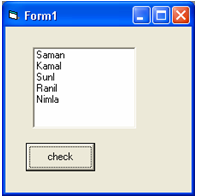
Private Sub Command1_Click()
Select Case List1.ListIndex
Case 0
            MsgBox ("Fiest name")
Case 1
            MsgBox ("second name")
Case 2
            MsgBox ("Thired name")
Case 3
            MsgBox ("fourth name")
End Select
End Sub
.


Tuesday, May 10, 2011

Control structures - 1.Branching - 1. IF Statement


  Branching statements are used to cause certain actions within a program if a certain condition is met.

·         Syntax

 If <condition > Then statement
     
            If Balance - Check < 0 Then Print "You are overdrawn"
     
Here, if and only if Balance - Check is less than zero, the statement “You are overdrawn” is printed.

    If  Then   End If blocks to allow multiple statements:
      Syntax

IF <condition> then
      statement1
      statement2
      ................
      statementn
end if

eg1:-   Private Sub Command1_Click()
number = Text1.Text
If number Mod 2 = 0 Then
                                    MsgBox ("Even")
End If
End Sub

            If Balance - Check < 0 Then
              Print "You are overdrawn"
              Print "Authorities have been notified"
            End If

      In this case, if Balance - Check is less than zero, two lines of information are printed.


Nested IF
     
eg2     
IF Boolean Expression Then
            Statement1
            Statement2
            Statement2
            ....................
            ....................
            Statementn
Else
IF Boolean Expression Then
                        Statement1
                        Statement2
                        Statement2
                        ....................
                        ....................
                        Statementn
Else

                        Statement1
                        Statement2
                        Statement2
                        ....................
                        ....................
                        Statementn
            End If
End if


Private Sub Command1_Click()
number = Text1.Text
If number Mod 2 = 0 Then
            MsgBox ("Even")
Else
            MsgBox ("odd")
End If
End Sub


If Balance - Check < 0 Then
              Print "You are overdrawn"
              Print "Authorities have been notified"
            Else
              Balance = Balance - Check
            End If
     
Here, the same two lines are printed if you are overdrawn (Balance - Check < 0), but, if you are not overdrawn (Else), your new Balance is computed.

    Or, we can add the ElseIf statement:
     
            If Balance - Check < 0 Then
              Print "You are overdrawn"
              Print "Authorities have been notified"
            ElseIf Balance - Check = 0 Then
              Print "Whew! You barely made it"
              Balance = 0
            Else
              Balance = Balance - Check
            End If
     
Now, one more condition is added.  If your Balance equals the Check amount (ElseIf Balance - Check = 0), a different message appears.

·         In using branching statements, make sure you consider all viable possibilities in the If/Else/End If structure.  Also, be aware that each If and ElseIf in a block is tested sequentially.  The first time an If test is met, the code associated with that condition is executed and the If block is exited.  If a later condition is also True, it will never be considered.


.